
- What is the Context Switcher?
- How do you use this feature?
- How does your "Role" affect which context(s) you can view?
What is the Context Switcher?
The Context Switcher allows you to create, view, and easily switch between Segment-specific Dashboards.
When viewing a dashboard that’s been set to a particular context (ie. Sales Team), Perked! will only show the data and analytics within that context. This includes segment-specific: engagement and driver scores, trends, heatmaps, comments, and Work Poll results.
How do you use it?
Step 1: Click on the Context Switcher located in the top left-hand corner of your Perked! dashboard. This triggers a drop-down menu.
Step 2: Choose the Demographic that you want to focus on.
Step 3: Select one or more Segments that you want to see. Then click on the “+ Segments” button.
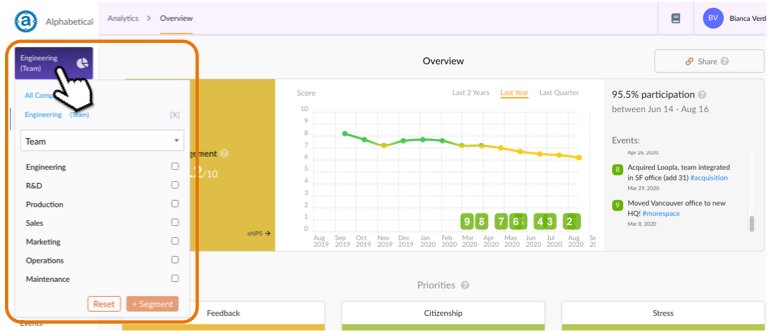
The Segment Dashboards that you create will be automatically saved in the menu until you refresh your page or logout of your Perked! account. You can also remove a saved segment dashboard by clicking on the [x].

How does your "Role" affect which context(s) you are able to view?
1. Administrators
Users who are in the Administrator group can set their context to any available segment(s) within the entire organization. The Context Switcher’s default label is “All Company”.
2. Managers
Managers only have access to specific segment(s) which they have been assigned access to. When a manager logs into Perked!, they will see their team’s dashboard by default.
As a result they will have access to a limited number of contexts.