
- What are Conversations?
- Who can initiate them?
- How does it work?
- Additional Features to support Conversations (Resolving and Filtering)
Traditionally, engagement surveys are a one-way feedback mechanism. This one-off interaction often leads to confusion (“what is this comment trying to tell us?”) or, from the employee’s perspective, the resignation that they won’t hear back from anyone.
The purpose of the Conversation feature is to help you gain greater clarification into issues and elevate organic ideas and solutions to solve them. More importantly, it serves to create a deeper level of connection with your employees by showing them that you’re listening to their feedback – while respecting their anonymity.
 What are Conversations?
When employees are asked a question from Perked!’s core question library, they have the option of providing additional qualitative feedback in the form of Comments.
Conversations happen when you initiate a two-way dialogue from a comment with an anonymous employee.
Who can initiate Conversations?
Administrators and Team Managers are the only members who can reply to comments. Teams Managers will only have access to their own team’s feedback.
How do they work?
Step 1: Initiating Conversation
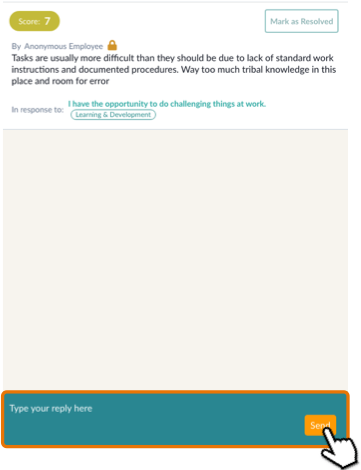
Click on the conversation icon in the comment box. A Conversation interface will popup where you can type in your response to the anonymous employee’s comment.
 Here are some Dos and Don’ts to create and maintain meaningful Conversations.

Step 2: Employee notified of conversation via email
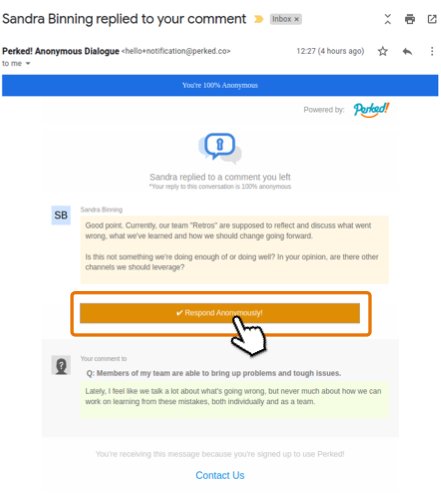
When you respond to a comment, the employee will get notified via email. The email will contain the comment, the manager’s response to the comment, as well as the manager’s name. The email to the employee emphasizes that the employee’s identify remains anonymous.
The email also contains a button to “Reply Anonymously” should the employee wish to engagement in the conversation.
Step 3: Admin/Manager gets notified of response from employee via email
Admins and Managers will be notified of employee responses in a batch the following day at 9am PST. Employee responses are batched in order to prevent you from receiving a multitude of emails separately.
Additional Features to Support your Conversations
Resolving Comments
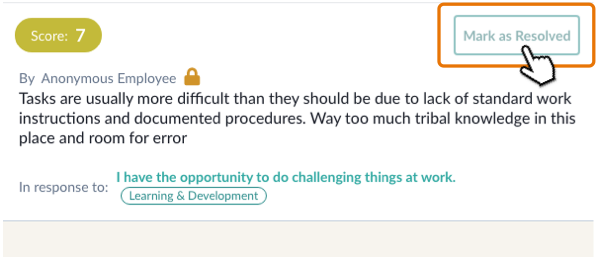
You can label a conversation as ‘Resolved’ by clicking on the “Mark as Resolved” button on the top right corner of the conversation view. Once a conversation is ‘Resolved’ you can no longer continue the conversation.
If needed, you can also ‘Unresolve’ a conversation that was previously resolved.
Filtering Conversations
You can filter employee comments based on the status of your “Conversations”. They can be filtered as:
- Pending Reply: Employee has replied to your response to their comment. You have not yet replied back to them.
- No Replies: You have not initiated a conversation with these comments.
- Replied: You have already replied to these comments, but employee has not replied back
- Resolved: Comments marked as “Resolved” (see above).
Access this feature via your Comments page. You will see a “Filter By Conversation” drop down menu on the left side menu.
