
- Script
- Visuals
To build confidence in the safeguards in place to maintain employee confidentiality on the Perked! platform, it is helpful to show your employees what leaders can and cannot see. We've found the companies that do this best have chosen to create a video showing how confidentiality is maintained in the platform.
This is important because concerns about confidentiality may result in lower participation rates, lack of confidence in the results, and ultimately an indifference to taking action.
Script
Here is an example script of what you might say in the video. Portions in brackets need to be customized based on your unique context.
Introduction:
- Hi Team! I’m [Name] from [CompanyName] and I am/work [Insert Role]. We’re looking forward to hearing your feedback and ideas and I wanted to make sure you’re aware of how your feedback will be displayed and the safeguards in place to maintain your confidentiality.
- We’ve partnered with Perked! a company that specializes in employee engagement feedback and insights. To keep your responses confidential, they have several technical safeguards in place.
Results Aggregation:
- First, the Perked! platform implements what is called a Confidentiality Threshold, which determine how your answers are aggregated and displayed in the survey results.
- We have set a confidentiality threshold of X [recommended threshold of at least 5]. That means anyone with access to the survey results can only see results if there are X or more responses within a segment.
- Insert Visuals (see below):
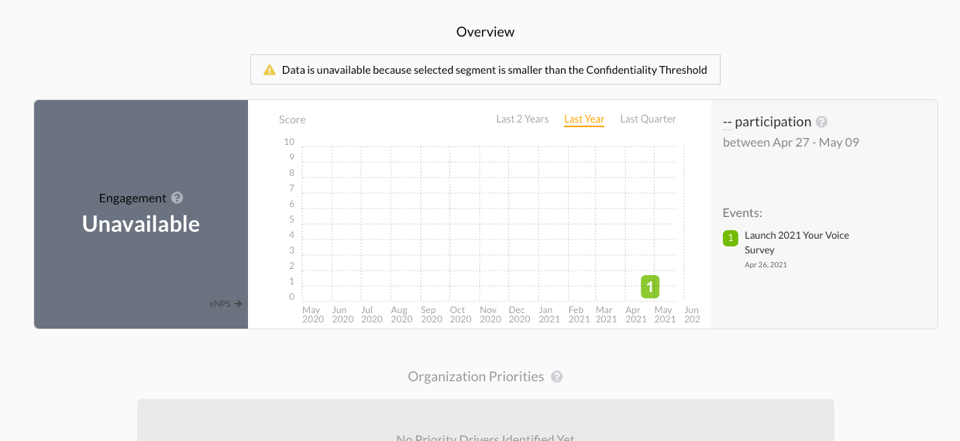
- Dashboard - What it looks in a segment view when confidentiality threshold is not met.
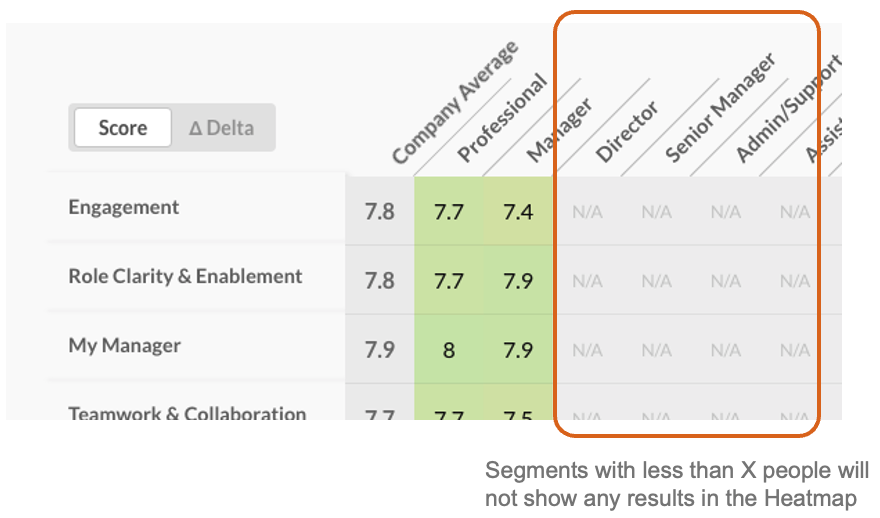
- Heatmap - What the heatmap looks like for segments where confidentiality threshold is not met.
Comments:
- When you share comments on Perked! they are not shown with any identifying information. Unless you write something in your comment that makes it obvious who you are, leaders/managers will not know who wrote the comment when they read it. They are also subject to the same confidentiality threshold rules, which means that no comments are shown for segments with less than X people.
- [optional] We only share reports with comments to XXXX (ie. Director level and above).
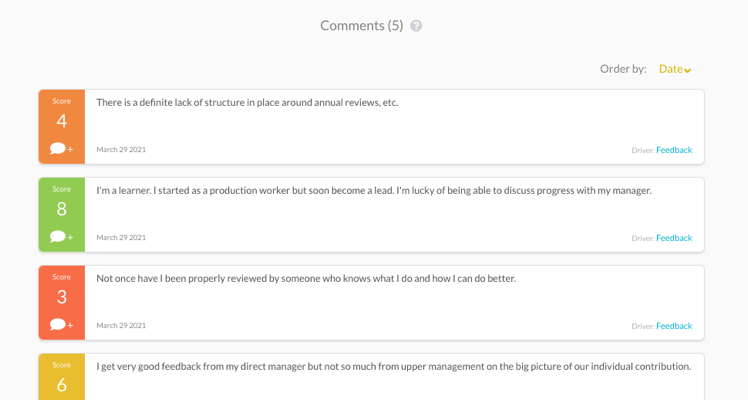
- Insert Visual (see below): Comments Page
Conversations (include if you are planning to use this feature):
- Your leader/manager can, from time to time, initiate a conversation with you, from a comment you wrote in the survey/pulse to ask for clarification, provide assistance, or get more information. All conversations are confidential, and no personal details are shared. If you reply back to a conversation, your responses will also continue to be confidential.
- Insert Visuals (see below):
- Initiating a Conversation
- Conversations Dialogue
- What employees see when a conversation is initiated
Reminders:
- You may notice emails from the Perked! platform inviting and reminding you to complete your survey, while Perked! knows who has and has not completed the survey in order to provide support, we at [CompanyName] do not.
Conclusion:
- Thank you again for taking the time to watch this video. As a reminder [Survey Name] will open on [Survey Start Date] and close on [Survey End Date]. Please take the time to let your voice be heard!
- If you have any further questions, please feel free to contact [Internal Support Email] or reach Perked! directly at [insert Perked! provided support email].
- Thank you!
Visuals
Here are the visuals discussed in the script section above. If you would like it in a different format, please reach out to us at hello@perked.co and reference "Confidentiality Video Visuals".
A. Dashboard - What it looks in a segment view when confidentiality threshold is not met.
B. Heatmap - What the heatmap looks like for segments where confidentiality threshold is not met.
C. Comments view
D. Initiating a Conversation

E. Conversations dialogue - focusing on confidentiality

F. Email received by the employee when a conversation is initiated - drawing attention to the two highlighted areas.
